Remove After this
Portfolio Slicer expects 4 external files, Dates.csv, CurrencyConv.csv, Quotes.csv, and Dividends.csv, that will be imported into the Excel workbook. You can use External Data Management Scripts to create these files.
- Edit configuration file psConfig.txt and specify the
MinDateparameter value.MinDateis a very important value and if you decide to change it later, you will have to delete all existing data from theQuotesandCurrExchfolders and then re-run the scripts. - Run batch file UpdatePSData.bat after you update the
MinDatevalue inpsConfig.txt, and before you add currency or symbol information. The defaultpsConfig.txtfile lists 2 index symbols, so when you run the scripts, you will attempt to download quotes for these 2 indexes. At the end of the run you should see a green message like this:
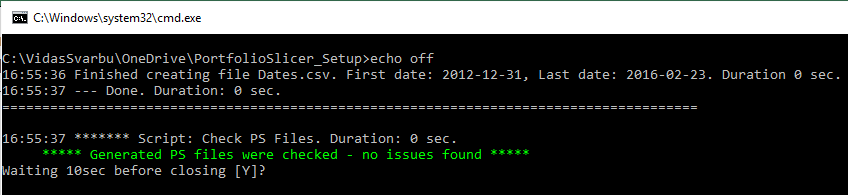
If you see a green message at the end of script execution, then the PowerShell scripts are working OK. If you see any red messages, that means you have to fix issues reported by the error messages. For example, if during PowerShell script execution you get error message Method Invocation failed because [System.Object[]] doesn't contain a method named 'IndexOf', then you will need to upgrade PowerShell to version 3.0 or later.
- Check the
\Quotes\subfolder and use Notepad to open existing files there. Familiarize yourself with how data is stored in these files. Each symbol should have 2 files: one file that is used by Portfolio Slicer with monthly or daily values, and then an archive file. For example, symbol^GSPCwill have files like__GSPC.txtand__GSPC__Archive.txt. Inside each file you should see comma-separated values without a header, for example:
2014-12-31,2058.899902,^GSPC
2015-01-30,1994.989990,^GSPC
2015-02-27,2104.500000,^GSPC
- Check
\PSData\Quotes.csvand familiarize yourself with how data looks in this file. You should see tab-separated values with a header, like this:
Date    Close         Symbol
2014-12-31  1.0000000001  * Cash
2014-12-31  2058.899902   ^GSPC
2015-01-30  1994.989990   ^GSPC
The first line in this file will be the header, followed by a quote for the * Cash symbol. Ignore this first record, as it is a placeholder record.
- Update the
Currencysection inpsConfig.txt. If all your symbols are in one currency and your country currency is the same, then you will have just one value in this section. For example, if you live in the USA and invest only in USA-listed symbols, then you would listUSDin yourCurrencysection. But if you live, for example, in Canada, and invest in USA and Canadian symbols, then you would listUSDandCADvalues in theCurrencysection:
<Currency>
USD
CAD
</Currency>
Re-run UpdatePSData.bat. Check the content of the CurrExch folder. If you have just one currency, then this folder will be empty. If you have more than one currency, you will have files there with exchange rates between currency pairs, for example CAD_USD.txt and USD_CAD.txt. These files will have comma-separated values with exchange rates for each business day, for example:
2016-01-29,0.7102,CAD,USD
2016-01-28,0.7106,CAD,USD
2016-01-27,0.7121,CAD,USD
Check file \PSData\CurrencyConv.csv - this file will have tab-separated values with a header, for example:
Date        ExchRate    CurrencyFrom    CurrencyTo
2006-12-27  1.0000000001 N/A           N/A
2016-04-08  0.6747      CAD            EUR
2016-04-07  0.6672      CAD            EUR
The first line in this file will always be the header, and then the first record will have the MinDate value from your configuration and CurrencyFrom/CurrencyTo values as N/A. This is a placeholder record that can be ignored.
- Choose 1 symbol that you will start working with. Choose a quote source for that symbol.
Use the appropriate source section in psConfig.txt, run UpdatePSData.bat, confirm that the script runs successfully, and then check files in the Quotes folder. Make sure there are quotes for the dates you need in that symbol’s quote files.
Repeat this step for a few more symbols and make sure to check if quotes are successfully extracted to the Quotes folder after adding each symbol. At the start, do not add all symbols you are planning to work with, but rather choose 1-3 symbols. Make sure Portfolio Slicer works with just a few symbols and only then keep adding more symbols and testing results.
To continue with examples, this guide will use currencies CAD and USD, and symbols AAPL, VTI, and XEI.TO in the Yahoo section and symbol MUTF_CA:TDB900 in the GoogleWeb section.
- If you are using Portfolio Slicer Generated Quotes, specify them in the
GeneratedQuotesparameter. - At this point your
psConfig.txtis updated for your environment. For this guide, filepsConfig.txtwill have the following values:
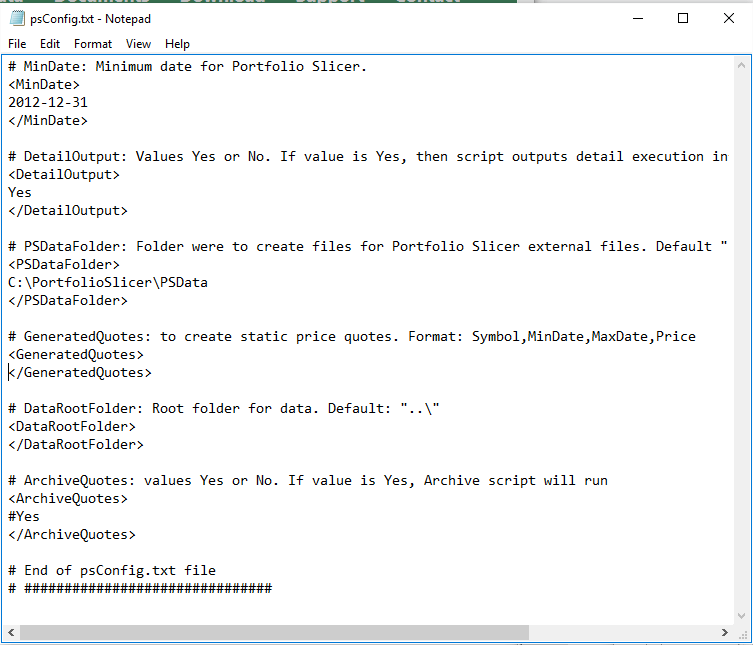
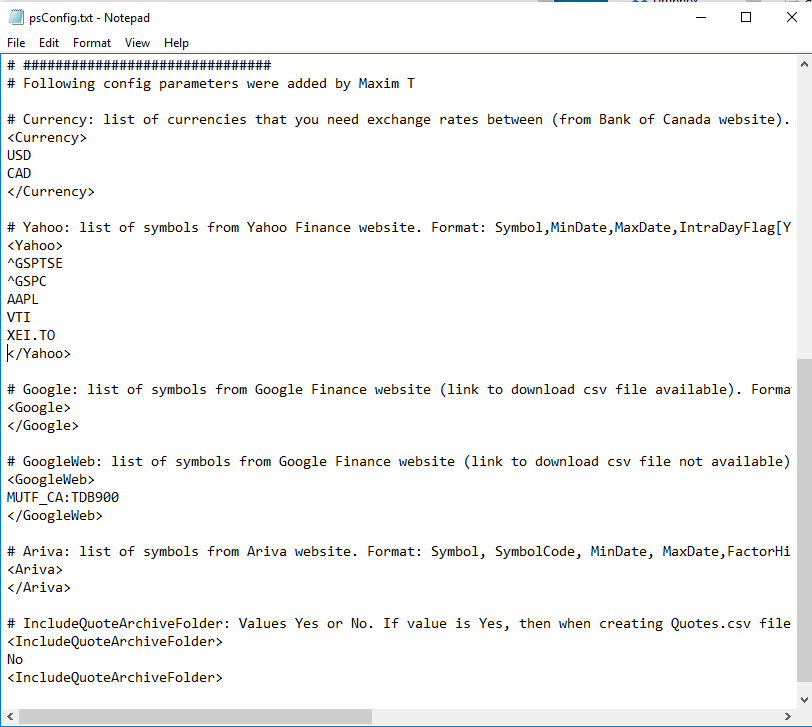
- At this point your external data files are ready. You will need to run batch file
UpdatePSData.batevery time when you want to get updated quote information. This could be done daily or even multiple times a day if you want to get intraday quotes. - At this point you have a choice of changing where Excel will load external files from. The default folder is
C:\PortfolioSlicer\PSData\. You can change this location by following instructions on these pages: Excel 2010 | Excel 2016+. For this guide we will assume that we will keep all external files in the default folder. - In
psConfig.txtthere is aSymbolRenamesection that can be used to change symbol strings inQuotes.csvandDividends.csvfiles. For example, you defined symbolTSE:XEIin the GoogleWeb section inpsConfig.txt. But in the Excel workbook you would prefer to refer to this symbol asXEI. In such case, in theSymbolRenamesection you would add lineTSE:XEI,XEI, and whenQuotes.csvandDividends.csvare created, symbol stringTSE:XEIwill be replaced withXEI.
Adding data about your investments into Portfolio Slicer workbook
- In the
Configtable, edit the values to look like this, changingMinDateandTrackCash:

- Edit the
Accounttable to have values like this:

Please note that we will be using 2 accounts with different currencies: CAD and USD.
- Edit the
Allocationtable to have values like this:
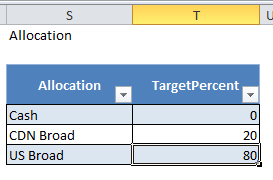
For this simple scenario we will target 80% of our investments into the USA market and 20% of our investments into the Canadian market.
- We will make
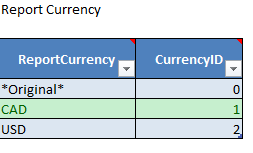
CADour primary currency by assigning it to theCurrencyID=1record in theReportCurrencytable:
- In the
Symboltable we will add information about symbols. It is important that all symbols that have records inQuotes.csvandDividends.csvfiles are defined in theSymboltable. First of all, we have to confirm the format of symbols in theQuotes.csvexternal table, asSymbolin theSymboltable should match columnSymbolinQuotes.csv. In our case, symbols we have quotes for have the following format:^GSPC,^GSPTSE,AAPL,VTI,XEI.TO, andTDB900.TO. We will add information about these symbols with following data:

Important fields in this table: Symbol, SymbolName, Currency (must match value in the ReportCurrency table), MER, and WHTPercent. It is a good idea for number values always to enter data. If a value is not known or not applicable, then enter 0.
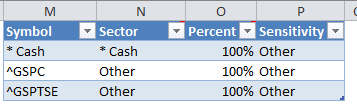
- At this point we will not add any data into the
SymbolSectortable and will leave it as it was:
- We will not change anything in the
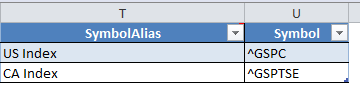
SymbolAliastable and we will leave it as it was:
- In the
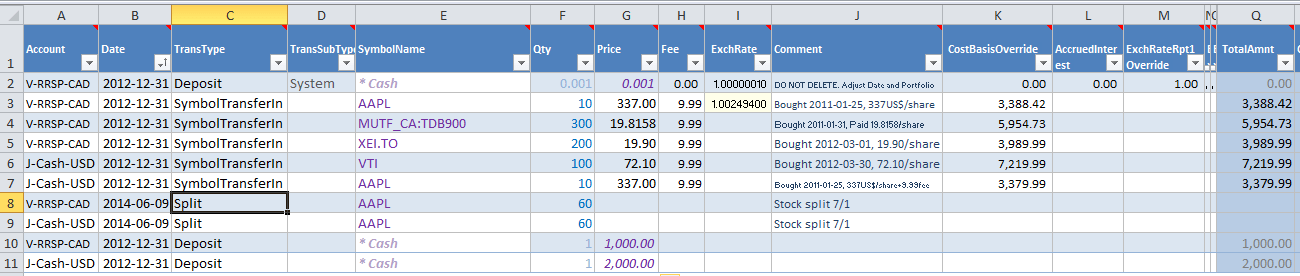
Transactionstable, first we have to edit the first record to replaceAccountwith one of the accounts from our table and then replaceDatewithMinDatefor our setup. Then we will enter transactions that will establish holdings in our accounts forMinDate, that is2012-12-31. We choose to use transaction typeSymbolTransferIn, butBuywould work almost in the same way, except if tracking cash. For all transactions we use date2012-12-31, but amounts are as of the date of symbol purchase.
For all initial transactions it is highly recommended to populate column CostBasisOverride with the original cost basis specified in the currency of the account, not the symbol. For this example, take a look at 2 different transactions for AAPL symbol. They were bought at the same time and for the same price, but placed in accounts with different currencies:

We also added the last 2 transactions to mark the AAPL stock split. This was a 1-to-7 split, where for each share we got 6 additional shares, so 1 share became 7 shares. As we had 10 shares in each account, we added 60 more shares at the date of the split.
- Now lets refresh data in our reports. To do so, please follow instructions: Excel 2010 Refresh | Excel 2016+ Refresh.
- The first report that you should look at after refresh is the
Holdingsreport. Make sure you first changeReportCurrencyslicer to*Original*to remove currency conversion. Start by checking theQty Heldcolumn for each symbol to confirm that the value is what you would expect:
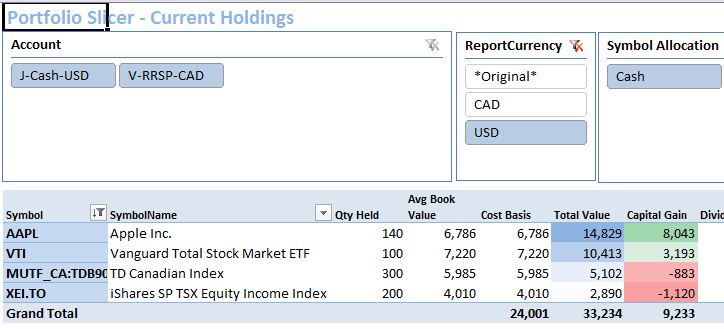
If you have the same symbol in multiple accounts, you can click on the Account slicer to show this report for that specific account. If you do not see a symbol in this report, that most likely means that you do not have quotes for this symbol. This report is filtered to show just symbols with Total Value > 0. If you do not have a quote for a symbol, or if after currency conversion the value is 0 because no currency conversion rates from symbol to report currency were provided, then the symbol will not appear in this report.
If quantity is OK, then look at Cost Basis and Total Value columns to make sure they match your expectations. If you see any issues there, then change ReportCurrency slicer value to *Original*. By doing so you will disable currency conversion. If at this point numbers look good, you can switch between currencies to confirm that currency conversion works properly.
- At this point you can review other reports available in Portfolio Slicer.
- Now lets edit the
Configtable and changeTrackCashparameter fromNotoYes:

- In the
Transactionstable now we can add deposit transactions for2012-12-31, as we know that one account had1000and another account had2000in cash, in account currency:
- Again, lets refresh data in our reports. To do so please follow instructions: Excel 2010 Refresh | Excel 2016+ Refresh.
- And now if we look at the
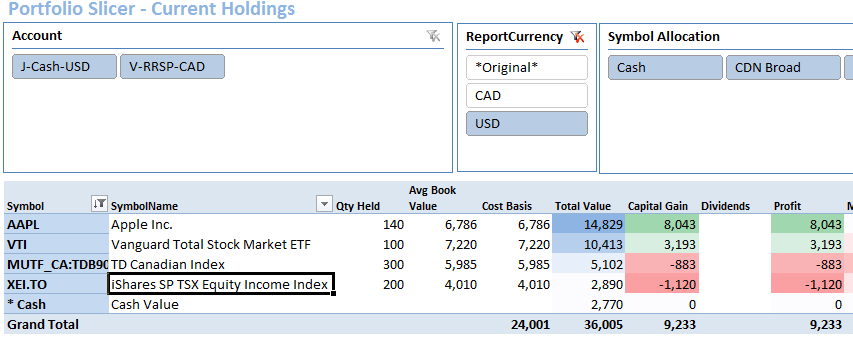
Holdingsreport, we will see that cash is now part ofTotal Valuecalculation:
- At this point we will add records about dividends received. We choose to manually enter dividends received into the
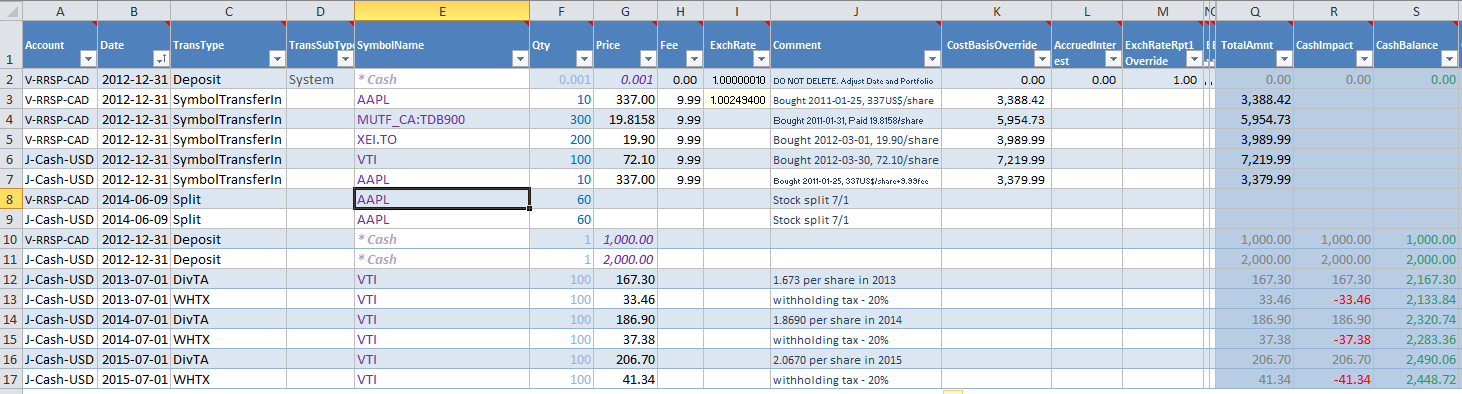
Transactionstable. In such case, make sure that for symbols for which you enter dividend information manually, you do not have records inDividends.csvfile. From our statements we found thatVTIpaid dividends2013-1.673,2014-1.869,2015-2.067per share. We choose to enter one transaction per year and use a middle-of-the-year date. Also, in our account the bank withholds 20% tax on any dividends received, so we record that too:
- Lets do refresh on our reports one more time: Excel 2010 Refresh | Excel 2016+ Refresh.
This time, as we know that we changed data just in one table, Transactions, and we are sure that other tables did not change, we could do a fast refresh. In Excel 2010 we can simply open the PowerPivot window. This will trigger Transactions table update in the data model. Then we can close the PowerPivot window and do a right-click in any PivotTable and choose Refresh. In Excel 2016+ we can do one-table refresh as described in Excel 2016+ Refresh, in the Selective data refresh part.
- And now if we look at the
Holdingsreport, we will see that dividends forVTIare in the report and included in profit calculation:

We could continue adding dividend information for other symbols.