Changing Portfolio Slicer Excel file external data location
Overview
Portfolio Slicer report workbooks come with connections configured to load files from C:\PortfolioSlicer\PSData\ folder
This page explains how to change that location.
Important Requirement
You can only change these file locations if your Excel environment exposes the necessary Power Pivot management interface.
If it does not, keep the default external data location.
Before You Start
Before changing the workbook connections:
- make sure the new folder already contains the required external files
- keep a backup copy of the workbook
General Process
- Open the workbook.
- Open the Power Pivot management interface (Click “Power Pivot” - > “Manage”).
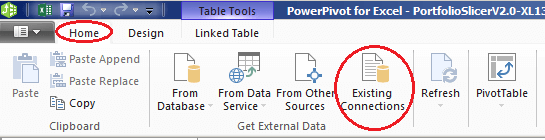
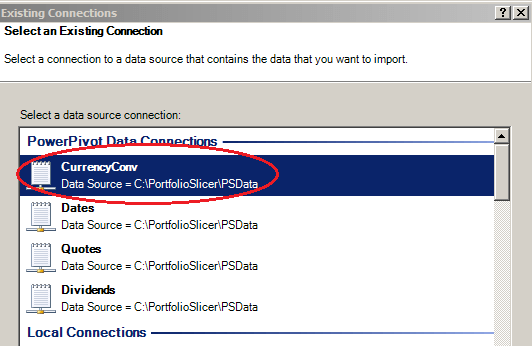
- From the Power Pivot window Home menu select “Existing Connections” button.
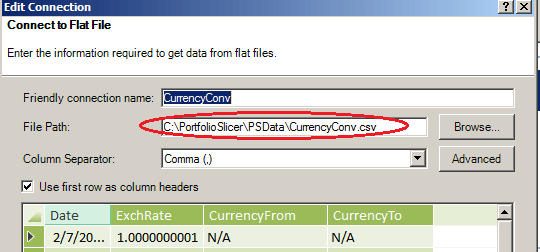
- Update each relevant external file connection.
- Save the workbook.
- Refresh and validate the workbook using the new location.

Practical Advice
After changing connections:
- confirm all expected files are present in the new folder
- run a refresh immediately
- verify holdings and values before assuming the move worked cleanly