How to set up Portfolio Slicer
Install Portfolio Slicer
This guide shows how to place the Portfolio Slicer workbook files, optional script files, and supporting folders so you can complete the initial setup safely.
Before you begin, review the system requirements.
Installation Video
If you prefer a visual walkthrough, this older installation video is still useful for the general folder layout and first-time setup flow:
Step 1: Create or Confirm the PSData Folder
By default, Portfolio Slicer Excel and Power BI report files look for the required .csv files in this location:
C:\PortfolioSlicer\PSData\
Create that folder if it does not already exist.
Although you can change this location in Excel and Power BI, it is a more complicated step, and we do not recommend doing it during initial setup. Start with this default file location.
Step 2: Prepare PowerShell
If you plan to use the external data scripts, make sure PowerShell is configured correctly on your computer.
See: Setup PowerShell on your computer
Step 3: Enable PowerPivot in Excel
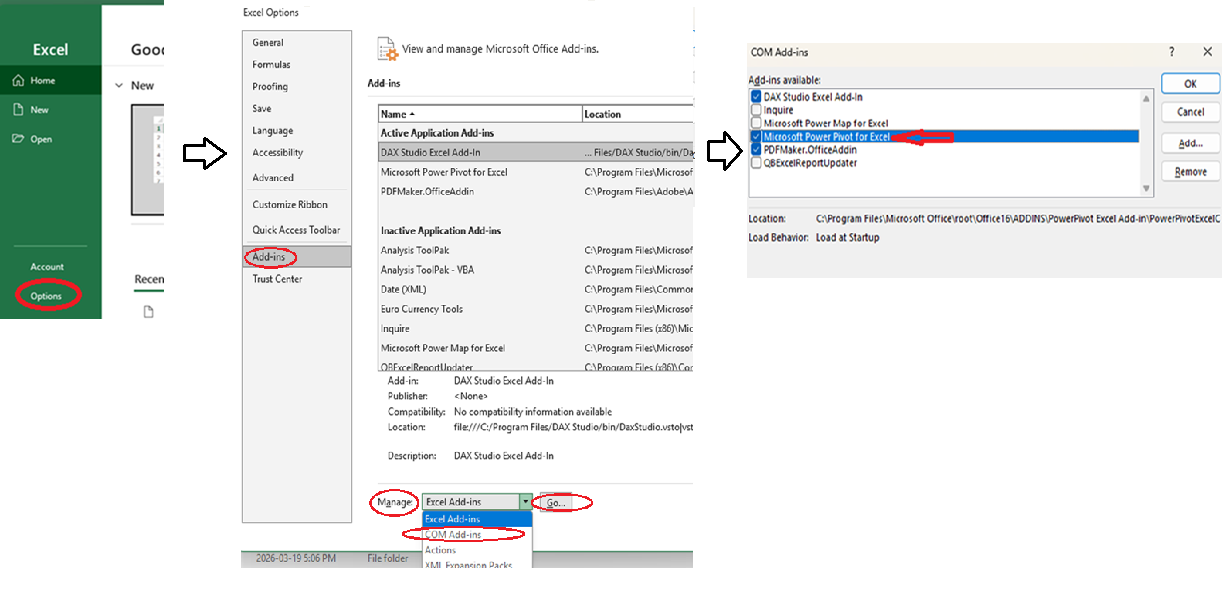
Before you can use Portfolio Slicer in Excel, you need to enable the PowerPivot add-in.
- Start Excel and select
Optionsat the bottom left. - In the
Excel Optionswindow, selectAdd-insat the bottom left. Then, nearManageat the bottom center, click the drop-down button, selectCOM Add-ins, and clickGo... - In the
COM Add-inswindow, select the checkbox next toMicrosoft PowerPivot for Exceland clickOK.
Step 4: Download the Required Files
Download the latest Portfolio Slicer packages from the download page.
Please download both available files: Starter and Demo.
Both downloads contain the same core files. The Demo package includes updated psConfig.txt and PortfolioSlicer-Source.xlsx files with additional demo data.
Each download now includes the required Excel files, the Power BI file, and all external data management scripts.
Step 5: Unblock Downloaded ZIP Files If Needed
On some Windows systems, downloaded ZIP files are marked as blocked. If you do not see an Unblock checkbox, please ignore this step.
If the file properties show a message like This file came from another computer and might be blocked to help protect this computer, click Unblock before extracting the ZIP file.
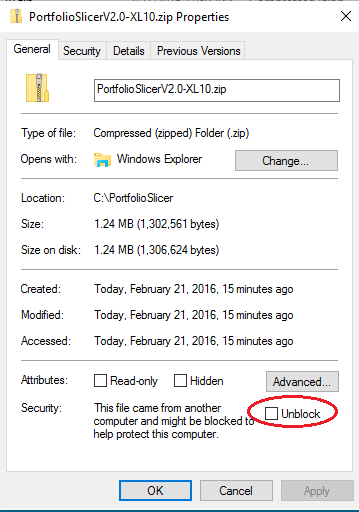
Portfolio Slicer does not depend on Excel macros in the workbook, but Windows file blocking can still interfere with the downloaded files.
Step 6: Extract the Portfolio Slicer Starter Download
Create the folder where you will keep your Portfolio Slicer data, copy the Starter download there, and unzip it.
If possible, we recommend storing your Portfolio Slicer data on a cloud drive such as OneDrive, Google Drive, or Dropbox. This can help you recover an earlier file version in case of data corruption.
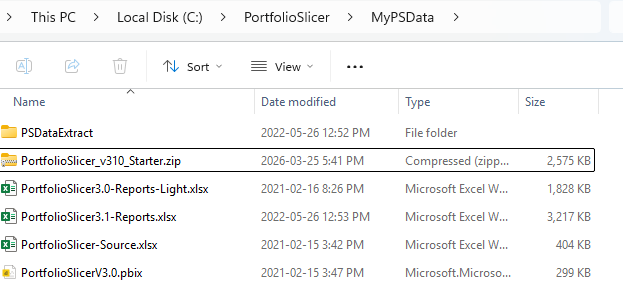
For this guide, we will use the folder c:\PortfolioSlicer\MyPSData.
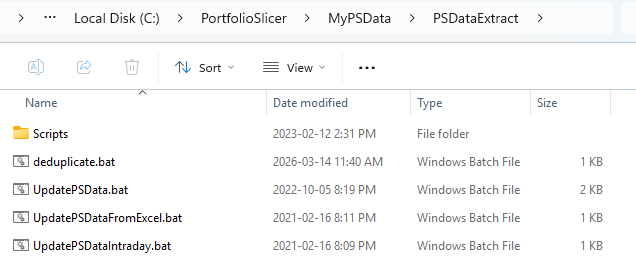
After extraction, your folder should look like this.
Make a note of the exact path to your PortfolioSlicer-Source.xlsx file.
Open file c:\PortfolioSlicer\MyPSData\PSDataExtract\Scripts\psConfig.txt in Notepad and, in the <ExcelSourceFile> section, enter the full path to your source file: c:\PortfolioSlicer\MyPSData\PortfolioSlicer-Source.xlsx.
Check the PSDataExtract subfolder. It contains all Portfolio Slicer scripts, including community-created quote and currency extract scripts from the web.
This subfolder should be treated as one unit and can be copied anywhere you want.
At this point, you are almost done with the initial setup.
Step 7: Check if Demo version works properly (optional)
Copy the Demo download to an empty folder (for example: c:\PortfolioSlicer\PSDemo\) and unzip it. The PSDemo folder contains all required files preconfigured with demo data.
If you want to explore it, update c:\PortfolioSlicer\PSDemo\PSDataExtract\Scripts\psConfig.txt and set the <ExcelSourceFile> parameter to the full path of the demo PortfolioSlicer-Source.xlsx file. For example:
<ExcelSourceFile>
c:\PortfolioSlicer\PSDemo\PortfolioSlicer-Source.xlsx
</ExcelSourceFile>
In the c:\PortfolioSlicer\PSDemo\PSDataExtract\ folder, double-click UpdatePSData.bat and wait for it to finish. If the run is successful, the final output should look similar to this:
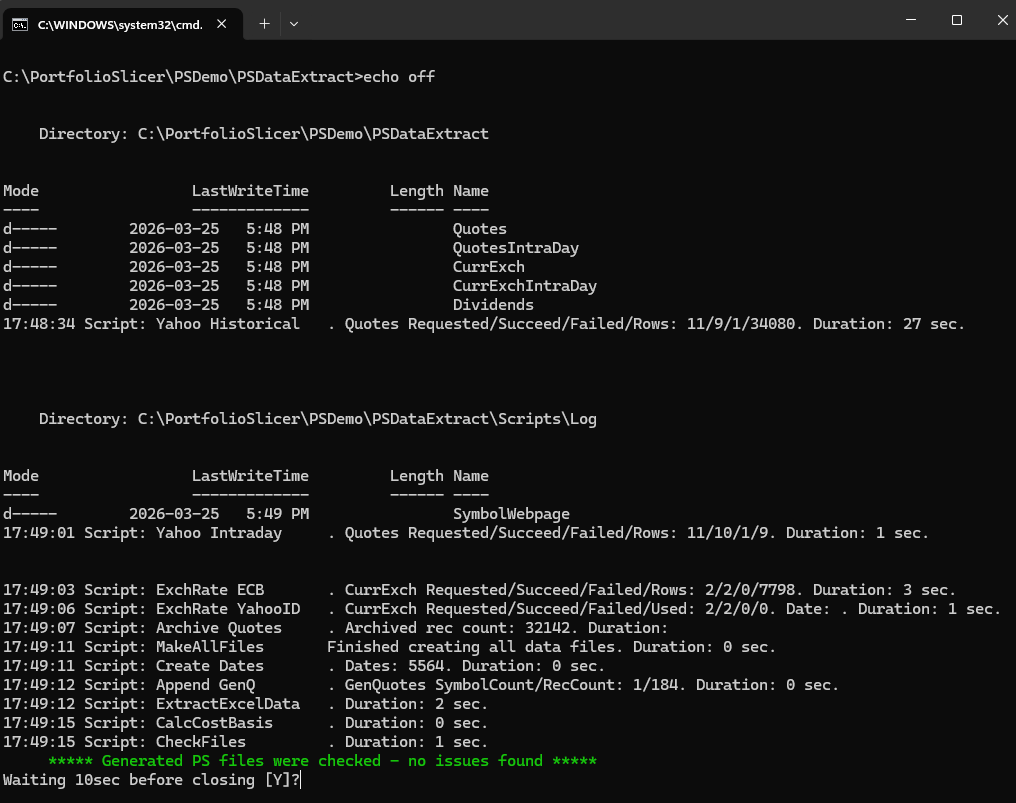
Now open the demo report workbook files in the PSDemo folder and refresh the data model and reports.
After that, you should see Portfolio Slicer reports with demo data. You should be able to review how the demo investments changed up to the date of refresh.
Step 8: Continue with First-Time Setup
Now you are ready to configure and use Portfolio Slicer with your data