How to change connections in Portfolio Slicer for Power BI Desktop model
Overview
The Portfolio Slicer Power BI file contains tables that are loaded from the files for Portfolio Slicer reports
In a standard setup, these files are stored in the folder C:\PortfolioSlicer\PSData\.
If you would like to change this default file location, you need to update each table connection.
Recommended Process
- Make sure tha all files for Portfolio Slicer reports are already in the new folder.
- Open the Portfolio Slicer Power BI file in Power BI Desktop application.
- Open the right side ribbon click on “Table view” button. This will open “Table view” with the list of all tables on the right side under “Data”.
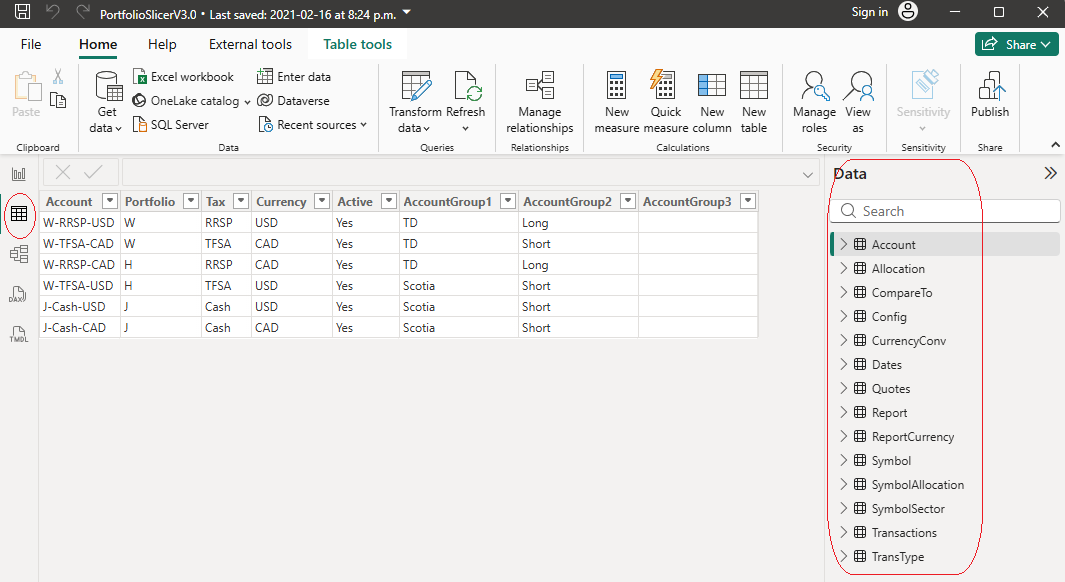
- Move your mouse over the
Accounttable and select “…” at the end of the table to give youMore optionsmenu. SelectedEdit querymenu item.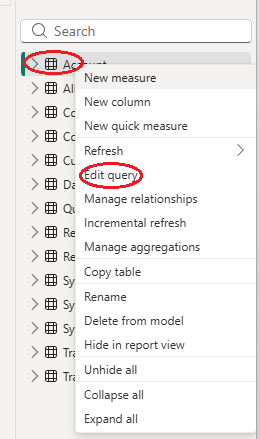
- In the new
Querywindow for each table/query (left) you will have to select from right sideApplied Stepsarea on the right ofSourcestepGearicon.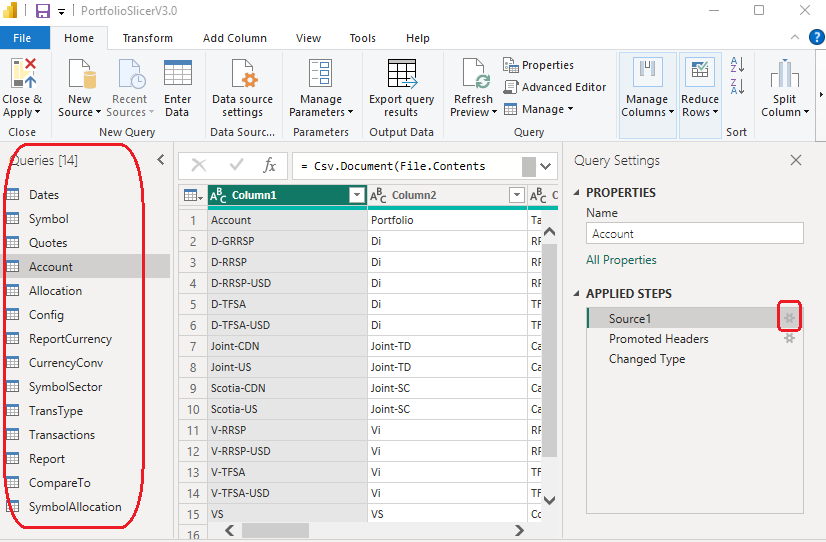
- New window will appear where in
File patharea you can specify new location for this file.Make sure that you keep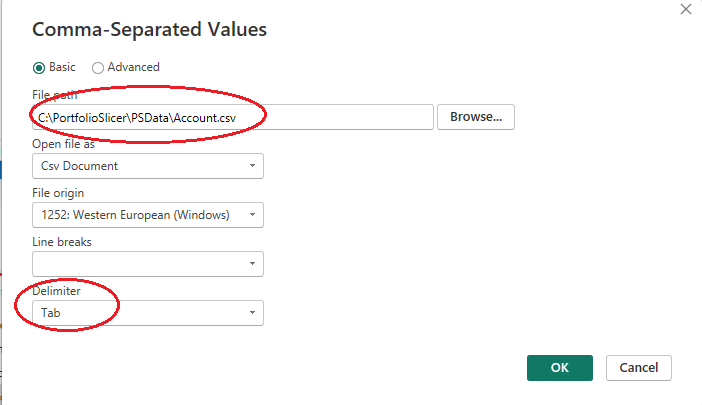
Delimitervalue asTab. - Do steps 5 and 6 for each table/query in the file.
- Click on
Close & Applybutton on the top ribon to save your changes and to go back to main Power BI Desktop application window.